You updated WordPress, a plugin, or a theme. Now the homepage shows a critical error, the editor will not open, or the design looks wrong. It is tempting to restore yesterday’s backup immediately. I would stop for a minute first. A full restore can erase orders, form entries, and edits made since that backup. Sometimes you only need to isolate one plugin.
The short answer: record the exact symptom and update, preserve a current copy of the files and database, identify the component that fails, and disable or restore that component first. Only use a whole-site restore when the narrower recovery is not enough or the data itself is damaged. Then test the site beyond the homepage before trying the update again.
A small failure test, and what it actually proves
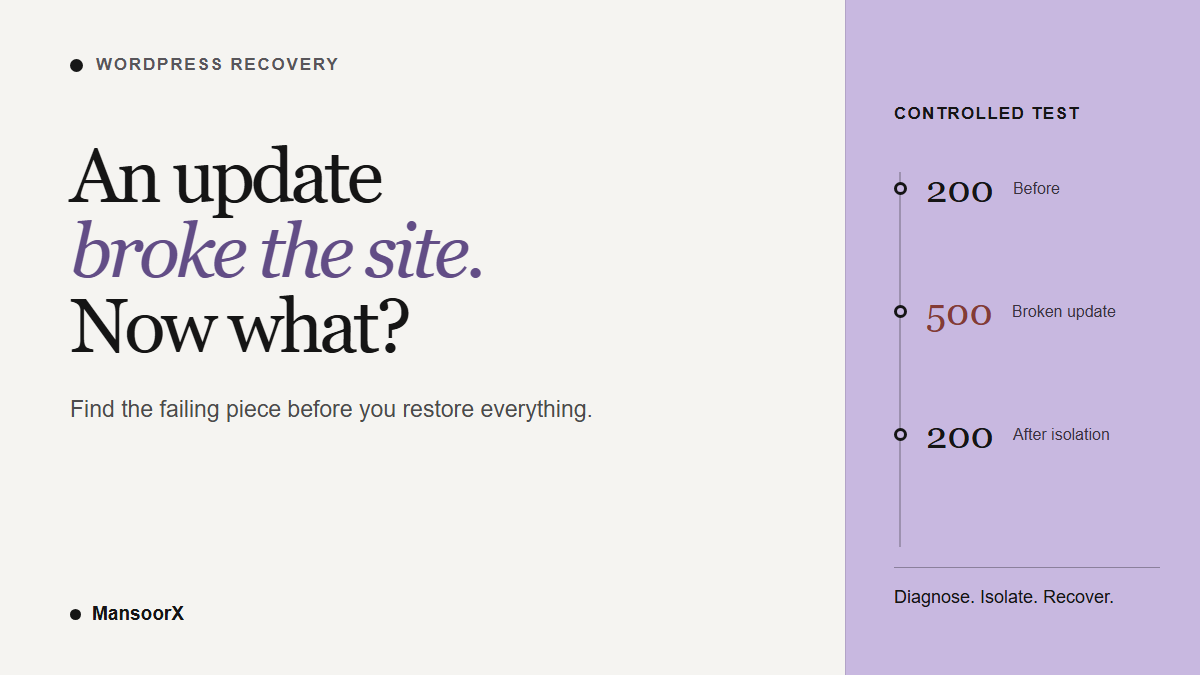
For this guide, a disposable local WordPress Playground site running PHP 8.3 was used to simulate a faulty plugin update. It was not a copy of MansoorX, and it was not a real vendor update package. Version 1.0.0 of a tiny test plugin loaded on the homepage. Its file was then replaced with a deliberately broken 1.1.0 revision that threw a PHP exception while WordPress loaded.
- Before the change: the homepage returned HTTP 200 and included a marker from the active, working plugin.
- After the broken revision: the same homepage returned HTTP 500 with WordPress’s critical-error message.
- After isolating that plugin file: the homepage returned HTTP 200 again. Removing the suspect from the load path restored access, but did not fix its code.
- After restoring the known-good file: the homepage still returned HTTP 200 and its original plugin marker appeared again.
That is a narrow result. It supports the order of operations below: baseline, identify the change, isolate it, restore a known-good version, retest. It does not show that a file rename will solve every update failure, that old plugin code is safe after a database migration, or that WordPress’s automatic rollback was exercised.
First decide what “broke” means on this site
Write down the time, the update name and old/new versions if available, the first failing URL, and whether /wp-admin/ still opens. Check one public page in a private window so your logged-in session does not hide a visitor-facing error. If a store is involved, stop test checkouts on the live site while you investigate.
A critical error or blank page
This is the path most like the local test. Check the administrator’s recovery email and the host’s PHP error log. WordPress Recovery Mode can pause a faulty plugin or theme for your administrator session and let you log in. It does not, by itself, mean visitors have a fixed site. If the email points to one plugin and the timing matches the update, isolate that plugin before touching everything else. The white-screen guide goes deeper on blank frontends, blank admin screens, and reading the error log.
The site is stuck in maintenance mode
A maintenance screen immediately after an update is a different clue from a PHP fatal error. WordPress explains the temporary .maintenance file used during an update. Check whether the update process is still running and ask the host to inspect its result before removing a leftover marker. Do not start deleting plugin folders because you saw a maintenance message. You need to know whether installation is incomplete, whether it failed, or whether only the temporary marker was left behind.
The site loads, but Elementor is wrong
If public pages load but the Elementor editor spins, fails to save, or returns a 403 or 500 on its requests, use the Elementor editor troubleshooting guide. If the editor shows the new design but visitors see old or broken styling, use the Elementor changes-not-showing guide instead. Elementor documents clearing generated files and data after certain updates, with a backup first. A stale stylesheet is not a reason to restore the entire database.
Preserve evidence before making the recovery change
Take a current backup of both the database and the site files, even if the site is already broken. It preserves the state you are diagnosing. WordPress’s database-backup guide is explicit that a database backup does not include plugins, themes, uploads, or configuration files. Check that your earlier, known-good backup is actually available and that you know its time.
If you have staging or host support, get the specific fatal error from the PHP log. On a non-public copy, WordPress debugging settings can write errors to wp-content/debug.log while keeping them off the page. Do not switch visible PHP errors on for visitors, and treat logs as sensitive. A filename in a stack trace is a lead, not always the final cause: another plugin can call code that fails inside it.
Choose the smallest safe rollback
If the error points to a plugin updated moments ago, first deactivate that exact plugin through Recovery Mode or the dashboard if possible. If admin access is unavailable, a host or someone with SFTP or a file manager can temporarily rename that plugin’s folder under wp-content/plugins/. WordPress documents this as an access-recovery method. Rename the one confirmed folder, not the entire plugins directory, and record its original name so you can reverse the step.
If the site returns, you have isolated a likely cause. You have not proved that the old version is compatible with every current setting. Restore the previous, trusted plugin package from a verified backup or vendor source only after checking whether the update changed database tables or stored data. Keep the broken version for inspection if the host or developer needs it. If the update was a security fix, leaving the vulnerable old version active is not a comfortable long-term solution; ask the vendor for a patched version or a supported workaround.
If the update was to a theme, the same principle applies, but switch to a known-good theme or ask the host to restore the theme files. If WordPress core was updated, do not casually upload an older core release over the site. Core updates can include database changes. In that case, use your host’s tested recovery process and a matched files-and-database backup.
There is also built-in protection, but its scope is limited. WordPress 6.3 added rollback for failed manual plugin and theme installations; WordPress 6.6 added automatic rollback for failed plugin auto-updates. Those mechanisms do not guarantee that a completed update behaves correctly on every page, with every extension, or in the browser. Check what version is actually installed before deciding that a rollback did or did not occur.
A full-site restore has a different cost
On a brochure site, restoring an older backup may mainly mean losing edits. On a live store, it may remove orders, customers, or subscription changes created after that backup. WooCommerce advises a current backup and staging test and checking the checkout path after an update. If new transactional data exists, ask the host or a WooCommerce specialist how to preserve it before restoring an older database. Do not discover the missing orders after the site is back online.
Check the recovery, then try the update again on staging
- Open the page that failed, a second public page, and wp-admin. Confirm the error is gone without relying on a cached browser tab.
- Check the function that matters to the site: a form submission, editor save, login, booking, or a test checkout in an appropriate non-production payment mode.
- Check the latest PHP error log entries and the installed versions. A 200 response does not prove every route works.
- If you used Recovery Mode, exit it and repeat the public checks. A paused plugin in one admin session can make the dashboard look healthy while visitors still have a problem.
- Reproduce the same update set on a staging copy with representative plugins, theme, PHP version, and content. Update one component at a time when you need to identify the conflict.
I would not leave a necessary update undone indefinitely. Once the cause is known, look for the vendor’s compatible release, a PHP compatibility change, or a documented fix. Make a fresh backup, run the update on staging, and check the same critical paths before repeating it on production.
This is a decision process, not a universal command to downgrade. If you cannot identify the changed component, the site handles payments or sensitive data, or a rollback might reverse a database migration, involve the host or a qualified WordPress developer before restoring anything.