A WordPress white screen of death is a blank page where content used to be. Sometimes the front of the site is white. Sometimes wp-admin is white. Sometimes both.
I am going to walk the recover order I use when a site goes blank. Blank front versus blank admin first. Then enable WP_DEBUG safely. Read debug.log. Rename plugins. Switch to a default theme. Check PHP memory and version. Then Elementor-specific white screens. Prevention last. Do not start by reinstalling WordPress. Read the log before you touch core.
Blank front vs blank admin (what that tells you)
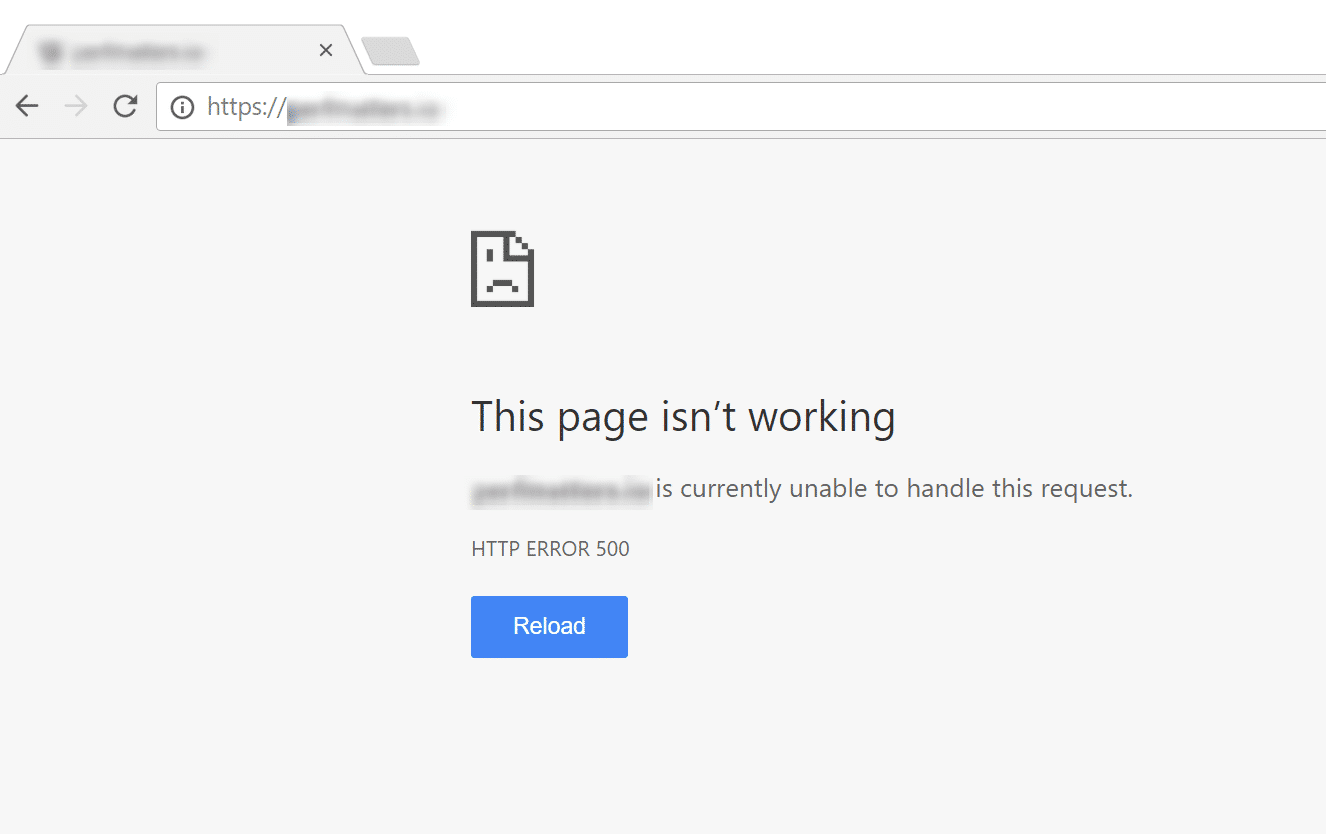
These are related, but they are not the same problem.
- Front white, admin OK: often a theme template, a frontend-only plugin, or a fatal that only runs on public pages.
- Admin white, front OK: often a plugin loaded in wp-admin, a mu-plugin, or a dashboard widget fatal.
- Both white: core load failure, serious PHP fatal early in boot, or a broken
wp-config.phpchange.
Write down which side is blank before you touch files. That choice cuts the search space in half.
If you still have FTP, SFTP, or host File Manager access, you are not locked out. You can recover without the admin UI. If you have neither admin nor file access, stop guessing and get host-level file access first. Everything below assumes you can reach the files.
Also separate a pure white screen from the WordPress critical error recovery email. The recovery screen is WordPress catching a fatal and showing a message. A pure white screen is often the same class of failure without a friendly message. Both want the same debug and isolation path.
Make sure you are looking at the real site, not a cached HTML error page from a CDN. Purge Cloudflare or host cache once if the blank page appeared right after a deploy and looks inconsistent across devices.
Enable WP_DEBUG safely
Guessing without a log wastes time. Enable debug so WordPress writes the real error.
In wp-config.php, above the line that says “That’s all, stop editing!”, add or update:
define('WP_DEBUG', true);
define('WP_DEBUG_LOG', true);
define('WP_DEBUG_DISPLAY', false);
@ini_set('display_errors', 0);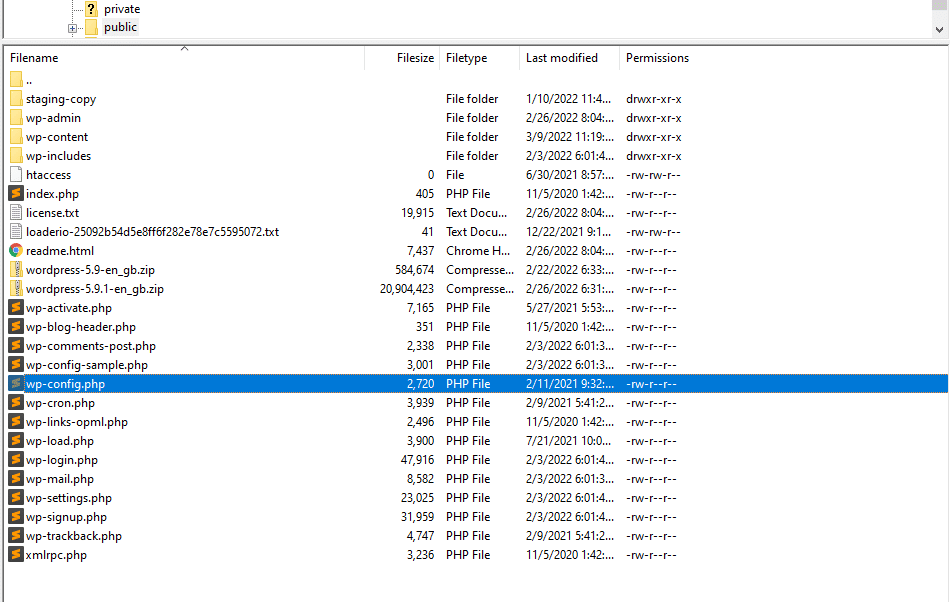
WP_DEBUG_DISPLAY should stay false on a live site so visitors do not see raw PHP errors. The log file is enough for you.
After a refresh of the blank page, open:
/wp-content/debug.log
You want the newest fatal or parse error near the bottom. Note the plugin or theme path in the stack. That path is your lead.
When you are done fixing, set WP_DEBUG back to false (or remove the temporary lines) so the log does not grow forever. Leaving debug logging on for months fills disk and can store sensitive paths in plain text.
If you are nervous about editing wp-config.php on production, copy the file first, then edit. One missing semicolon in wp-config.php can blank the whole site by itself. Syntax discipline matters here.
Read debug.log (what to look for)
Open the log from the bottom. Fresh fatals land at the end.
Typical lines point at:
- A plugin file under
/wp-content/plugins/... - A theme file under
/wp-content/themes/... - A memory exhausted message
- A parse error after a bad edit
- An Elementor or addon class that no longer exists after an update
If the log names a plugin, disable that plugin first (next section). If it names the active theme, switch themes. If it says memory exhausted, raise memory after you stabilize the site enough to work.
No log file after a refresh? Confirm WP_DEBUG_LOG is true, confirm /wp-content/ is writable, and confirm you edited the correct wp-config.php for this install (not a leftover staging copy on the same server).
Also check the host PHP error log (PHP-FPM, Apache, or Nginx error log). Some fatals happen before WordPress can write debug.log. Host logs catch those early crashes.
I read the log like a builder, not like a panic list. One named file path beats ten random plugin deactivations.
Rename plugins via FTP / File Manager
If you cannot reach Plugins in wp-admin, rename folders.
- Connect with FTP/SFTP or open the host File Manager.
- Go to
/wp-content/plugins/. - Rename the whole
pluginsfolder toplugins-off(or rename one suspect plugin folder by adding-offto its name). - Reload the site.
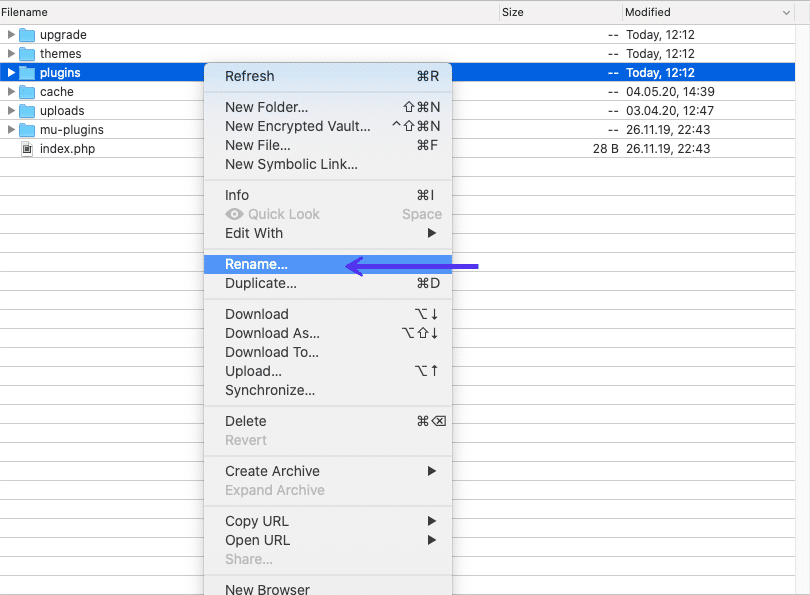
If the site comes back after renaming all plugins, rename the folder back to plugins, then rename individual plugin folders one by one until the white screen returns. The last folder you renamed is the culprit. Update it, replace it, or leave it off until you have a fix.
This is the same isolation idea as Safe Mode for Elementor, but it works when the whole admin is blank.
On busy live sites, do this in a short window and take a backup first if the host makes that easy. You are not destroying plugins by renaming folders. You are stopping PHP from loading them.
Do not forget mu-plugins. If /wp-content/mu-plugins/ exists, those load automatically and do not appear in the normal Plugins list the same way. A bad mu-plugin can white-screen admin while your regular plugins folder looks innocent. Rename a suspect mu-plugin file the same way if the log points there.
Switch to a default theme
If plugins are clean and the site is still white, the active theme may be fataling.
- In
/wp-content/themes/, find a default theme (Twenty Twenty-Four, Twenty Twenty-Five, or Hello Elementor if present). - If you can reach Appearance → Themes, activate a default theme there.
- If admin is still blank, temporarily rename the active theme folder (add
-off). WordPress should fall back to a remaining default theme.
If a default theme restores the site, your previous theme (or a child theme edit) is the problem. Restore from backup or fix the file named in debug.log.
Do not delete the broken theme until you have a backup copy. You may need its templates later.
Child themes deserve a special note. A broken function in functions.php of a child theme is a classic white screen after a “small CSS tweak” that accidentally became PHP. If the log points at the child theme functions.php, rename that file temporarily and retest. Fix the syntax, then put it back.
PHP memory / version
Two hosting settings cause a lot of white screens after updates.
Memory: If debug.log says memory exhausted, raise PHP memory in the host panel, or set a higher WP_MEMORY_LIMIT in wp-config.php if you already manage that file. Retest.
PHP version: After a host moves you to PHP 8.x, old plugins or themes can fatal. If the white screen started right after a PHP change, roll PHP back one supported version temporarily, then update or replace the plugin named in the log. Staying on ancient PHP forever is not the fix. Updating the broken code is.
Elementor and heavy builders need enough memory. 128M is often too low once Elementor Pro and addons are in play. 256M is a common working floor. Some stacks need more. Raise memory for the real requirement. Do not treat unlimited memory as a substitute for fixing a runaway plugin.
If the white screen started the same hour as a host PHP upgrade email, treat PHP version and the plugin named in the log as the primary suspects. That timing is not a coincidence.
Elementor-specific white screens
Elementor can white-screen the editor, a single template, or the whole front after an update.
Check in this order:
debug.logfor Elementor or addon class names (including orphaned addons after an Elementor major update).- Rename Elementor addon plugins first, then Elementor Pro, then Elementor, using the folder rename method if admin is down.
- Confirm Elementor and Elementor Pro versions match what each other expect.
- If only the editor is white but the front works, treat it like an editor bootstrap failure (REST, memory, addon conflict), not only a classic front-end white screen. That path is closer to the Elementor not loading fix order than to a full site crash.
- After you restore admin, regenerate Elementor CSS & Data and purge caches so you are not staring at a half-recovered front.
Orphaned Elementor addons are a real pattern. An addon calls a class Elementor removed. The site fatals. The log names the addon, not “Elementor core is evil.” Disable the orphan. Update or replace it. Then bring the stack back carefully.
If you fixed a white screen caused by an Elementor addon, update that addon or remove it before you turn every other plugin back on.
Prevention checklist
After you are back online:
- Keep automatic backups you can restore in minutes.
- Update plugins and themes on staging first when the site is important.
- After big Elementor or PHP upgrades, watch
debug.logfor a day. - Avoid nulled or abandoned Elementor addons. They break first when APIs change.
- Know how to reach File Manager or SFTP before you need it.
- Keep a short internal note of which plugins are load-bearing (Elementor, WooCommerce, membership, forms). That list speeds isolation next time.
- Do not edit
wp-config.phpor theme PHP on production without a copy.
A white screen is almost always a PHP fatal you can name. The recover order matters more than panic reinstalls.
Soft close
Enable debug, read the log, isolate plugins, check the theme, then PHP. That order gets most sites back without guessing.
If you are locked out of admin and File Manager, or the log points at a mess you do not want to touch live, send me a note. I recover and rebuild WordPress systems for a living (about), and a real debug.log line beats a vague “it went white” report.
FAQs
Is the white screen the same as the WordPress critical error email?
Often related. The critical error screen is WordPress catching a fatal and showing a recovery message. A pure white screen is usually the same class of failure without a friendly message. Both want debug.log and plugin isolation.
Can a bad edit in wp-config cause a white screen?
Yes. A missing semicolon, a bad quote, or a broken define can blank the site. Restore wp-config.php from backup, or fix the syntax, then reload.
Should I reinstall WordPress core first?
No. Reinstall core after you know the fatal is not in a plugin, theme, or config mistake. Core reinstall rarely fixes an addon fatal and can waste the recovery window.
What if debug.log is empty but the site is still white?
Confirm you are editing the live wp-config.php, confirm /wp-content is writable, and check the host error log (PHP-FPM or Apache/Nginx error log). Some fatals happen before WordPress can write its own log.
Admin is white but I still get email from the site. What does that mean?
Cron and some server processes can still run while wp-admin fatals. That does not prove the front is healthy. Still read the log and isolate plugins. Email is not a substitute for a working admin.