Elementor not loading is usually a stuck spinner, a blank canvas, or “Edit with Elementor” doing nothing. The front of the site may look fine. You still cannot open the editor.
I am going to walk the fix order I actually use when an Elementor editor will not open. Network and REST first. Then URL mismatch. Then WAF and security. Then PHP memory and Safe Mode. Then addon conflicts. Clean reinstall last. Do not start by reinstalling WordPress. That is almost never the first move.
What “Elementor not loading” actually looks like
People mean a few different failures when they say Elementor is not loading:
- The editor opens, but the spinner never stops.
- The canvas is blank. No widgets. No structure panel.
- Elementor asks you to enable Safe Mode, or Safe Mode is already on and still fails.
- “Edit with Elementor” does nothing, or returns a white/blank admin screen.
Frontend OK and editor broken is common. That usually points to admin AJAX, REST routes, security rules, or a plugin conflict in the editor context, not a theme skin issue.
Make sure you can reproduce it in a private window with one admin user. If it only fails on one browser with heavy extensions, fix that first. Otherwise keep going in order.
Check Network first (403 / 500 / timeout)
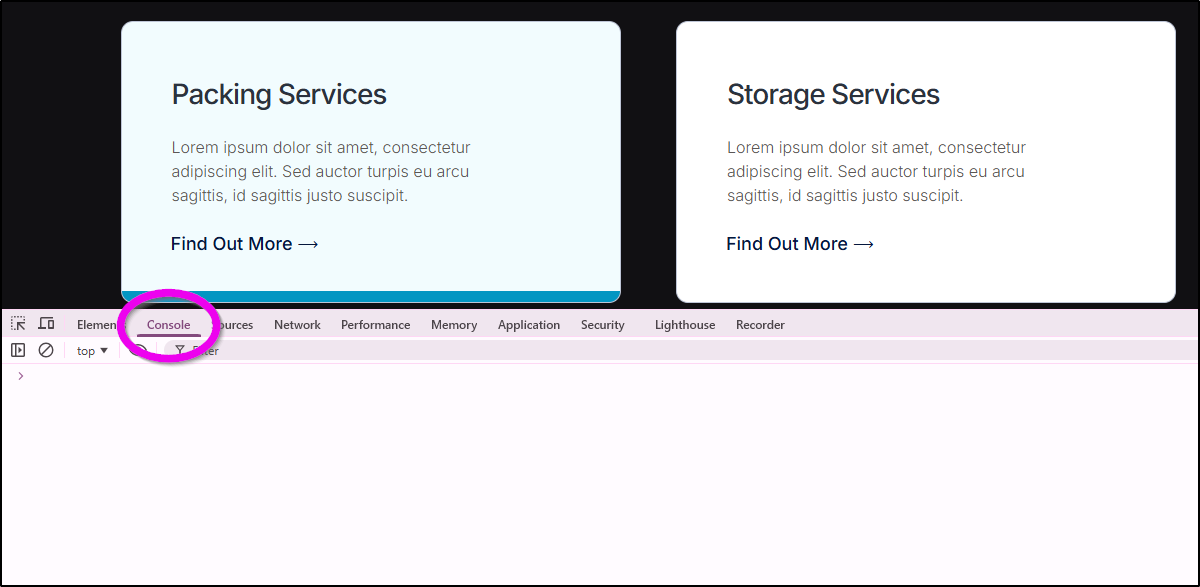
Open the page that should load the editor. Open DevTools. Go to the Network tab. Reload. Filter for `elementor` or look at failed red requests.
What you want to see is whether `/wp-json/` or Elementor’s REST routes return 200, or something else.

Common patterns:
- 403 on a REST or admin-ajax call: permission, nonce, or a firewall blocking the method.
- 500: PHP fatal, memory, or a broken plugin while the editor boots.
- Timeout / pending forever: hosting, reverse proxy, or a request that never finishes.
- 401 / cookie issues: logged-out session or caching of logged-in responses (bad cache rules for `/wp-admin` and REST).
Write down the failing URL and status code. That one line saves you from random “deactivate everything” loops.
Also check the Response body on the failed call. A JSON permission error, an HTML firewall page, and a PHP stack trace are three different problems. Guessing without that body wastes time.
If REST calls to Elementor fail with 403, do not jump to reinstalling Elementor yet. Fix the 403 first. Reinstall does not unblock a firewall.
REST API and site URL mismatch
Elementor leans on the WordPress REST API. If Site URL and Home URL disagree (http vs https, www vs non-www), the editor often spins forever or fails quietly.
Check Settings → General:
- WordPress Address (URL)
- Site Address (URL)
They should match how you actually load wp-admin. Same scheme. Same host. No accidental http on an https site.
If you changed SSL recently, or moved from www to bare domain, check `wp-config.php` for hardcoded `WP_HOME` / `WP_SITEURL` that still point at the old address. Those override the Settings screen and silently break REST.
Also test REST health in the browser while logged in:
`https://yoursite.com/wp-json/`
You should get JSON, not an HTML error page, not a security block page, not a redirect loop.
If `/wp-json/` is blocked or redirected incorrectly, Elementor will not load cleanly. Fix permalinks (Settings → Permalinks → Save, without changing anything) after you correct URLs. That flushes rewrite rules.
Honest take: a lot of “Elementor updates broke my editor” tickets are really URL or HTTPS mismatches that showed up after a migration or SSL change.
WAF / ModSecurity / security plugins
Security layers love to block PUT, PATCH, or long REST payloads. Elementor’s editor uses REST heavily. So a WAF can break the editor while the public site still looks fine.
Check these in order:
- Cloudflare or host WAF: temporarily set a softer security level for your IP, or disable the WAF briefly on a staging copy. Watch Network again. If 403s disappear, whitelist Elementor/REST paths or disable the specific rule, then turn protection back on.
- ModSecurity: common on cPanel hosts. Ask the host for ModSecurity audit logs around the failed request time, or toggle ModSecurity off briefly to test.
- Wordfence, Sucuri, iThemes, and similar: learning mode, blocked REST, or firewall rules that treat editor traffic as suspicious. Temporarily disable the firewall (not always the whole plugin) and retest the editor.
Make sure you are not caching wp-admin or REST responses for logged-in users. Full-page cache on `/wp-json/` will wreck Elementor. Exclude `/wp-admin*`, `/wp-json*`, and logged-in cookies from the page cache. Then purge cache and retest.
If Save or Publish later returns 405 Method Not Allowed, that is often the same family of problem: the server or WAF is rejecting the HTTP method Elementor needs. Fix the method/WAF rule. Do not keep reinstalling plugins hoping 405 goes away.
Wordfence tip: if the firewall is in learning mode after a big Elementor update, let it learn admin REST traffic from your IP before you lock rules down again. A fresh tight rule set after an update is a frequent spinner cause.
PHP memory and Elementor Safe Mode
Low PHP memory can kill the editor mid-boot with a spinner or a blank canvas. Raise memory in a controlled way (host panel, or `WP_MEMORY_LIMIT` / `WP_MAX_MEMORY_LIMIT` in `wp-config.php` if you already manage that file). Then retest.
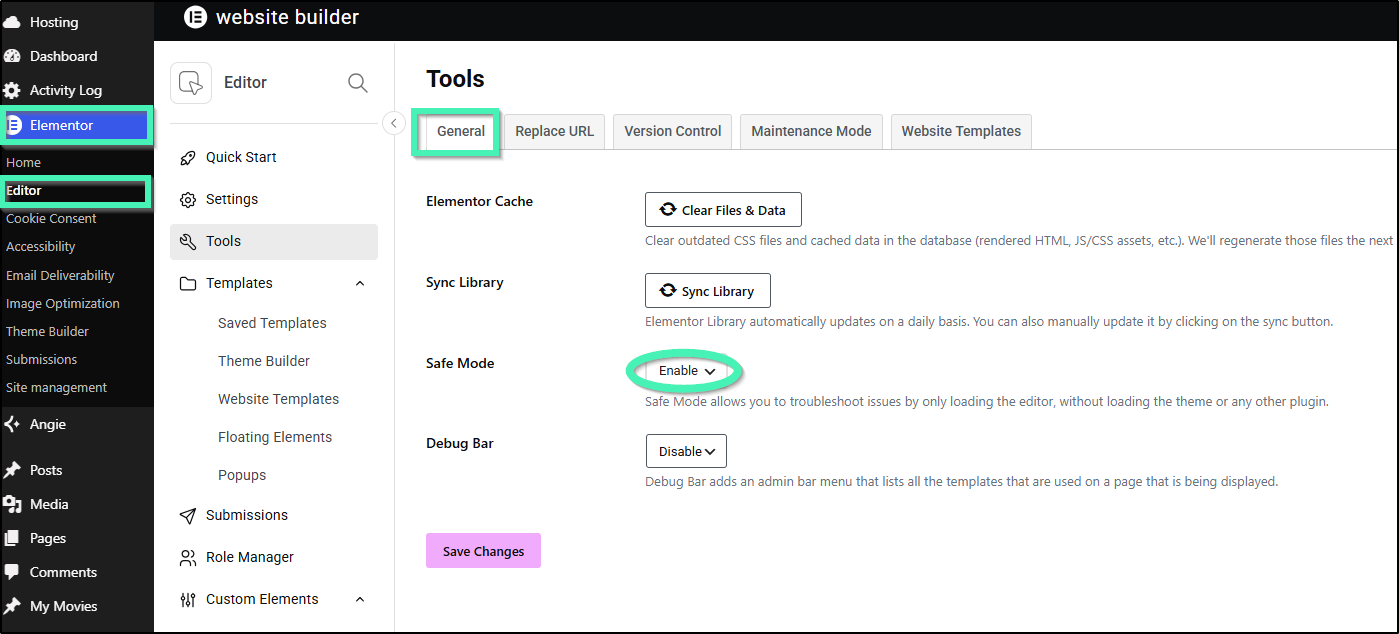
Elementor Safe Mode loads the editor with a reduced plugin/theme footprint. Use it as a diagnosis tool.
- If Safe Mode loads and normal mode does not, you likely have a plugin or theme conflict. Good. Move to the conflict section.
- If Safe Mode also fails, you are probably still in Network/REST/WAF/URL/memory territory. Safe Mode is not magic. It cannot fix a blocked REST route.
I do not treat “enable Safe Mode” as the fix. I treat it as a fork in the diagnosis tree.
Memory check: if the host panel shows PHP memory at 128M and the site runs Elementor Pro plus a heavy addon pack, raise it (256M is a common working floor for busy builders; go higher if the host allows). Then clear any object cache and retry the editor once.
Addon conflicts after updates
When Elementor or Elementor Pro updates, addons break the editor more often than core WordPress does.
My order:
- Disable Elementor addons first (anything that extends Elementor widgets, theme builder, dynamic tags, forms packs bolted onto Elementor).
- Retest the editor.
- If it works, re-enable addons one by one until it breaks. That addon is your problem (update it, replace it, or report the conflict).
- If addons are not the cause, disable other plugins in batches. Keep Elementor + Elementor Pro enabled while testing when you can.
- Switch to a default theme briefly (Hello, Twenty Twenty-Four) only after addons and plugins, if the editor still fails.
Do this on staging if the site is live and busy. If you must work on production, do it in a maintenance window and take a backup first.
Make sure your PHP version matches what Elementor currently supports. Ancient PHP plus a fresh Elementor update is a classic blank-editor combo.
Also update Elementor and Elementor Pro together when you can. A Pro build that expects a newer free Elementor (or the reverse) will fail in odd editor-only ways. Check Elementor → System Info for obvious red flags before you chase rare edge cases.
When to reinstall Elementor clean
Reinstall is last, not first.
Only after:
- Network shows no unexplained 403/500 on Elementor REST
- Site URL / Home URL match
- WAF/security tests did not leave a standing block
- Memory is sane
- Safe Mode pointed to a conflict you already addressed, or Safe Mode also failed for non-conflict reasons you fixed
Then:
- Backup the site (files + database).
- Deactivate Elementor Pro, then Elementor (note your Pro license location so you can reconnect).
- Install fresh Elementor, then Elementor Pro from a clean package.
- Reconnect the license.
- Retest the editor before you turn every addon back on.
A clean reinstall fixes corrupted plugin files. It does not fix a WAF rule or a wrong Site URL. If you skip straight to reinstall, you often waste an hour and learn nothing.
Soft close
Run the checklist once in that order. Most stuck spinners die at Network/REST, URL mismatch, WAF, or an Elementor addon conflict. Reinstall is the last tool, not the first.
If the editor is still dead after that full pass, send me a note with the failing Network status code and what you already tried. I build and fix Elementor systems for a living (about), and I would rather see the real request failure than guess.
FAQs
Why does Safe Mode say enable but still fail?
Safe Mode mainly reduces theme/plugin interference. If REST is blocked, URLs disagree, or PHP is fataling before Elementor boots, Safe Mode fails too. Treat Safe Mode as a test, not the whole fix.
Editor loads but Save/Publish returns 405?
The editor UI can appear while write methods are blocked. Check WAF, ModSecurity, and server rules for PUT/PATCH/POST to admin-ajax and REST. Fix the method block. Reinstalling Elementor rarely fixes a 405.
Frontend is fine, only the editor is broken. What does that mean?
The public page does not need the same editor REST stack. Focus on wp-admin, REST, security plugins, and Elementor addons. You are not looking for a missing homepage banner. You are looking for editor bootstrap failures.
Could this be hosting, not a plugin?
Yes. ModSecurity, aggressive WAF, wrong SSL termination, or cached REST responses are hosting/proxy issues. If Network shows 403/405 from the edge before WordPress runs, talk to the host with that request URL and status code.