Elementor changes not showing on the live site is one of the most common builder walls. The editor shows your new spacing, colors, or layout. The public page looks stuck on the old design. Sometimes the page is almost unstyled (“void of CSS”).
I use a fixed order: Regenerate CSS & Data, fix HTTP/HTTPS URL mismatch, check uploads/elementor/css permissions, review CSS print method, then clear cache/CDN/minify layers. Do not reinstall Elementor first. That rarely fixes stale CSS delivery.
Editor OK, live wrong
Confirm you published, not only saved draft.
Then compare:
- Editor canvas
- Front URL in a private window
- Front URL logged in
If logged-in looks updated and logged-out does not, you have a cache layer serving old HTML/CSS to guests. If both are stale, start with Regenerate CSS and URL mismatch.
Elementor 4 / Atomic CSS reports often look like “I press Save, but nothing happens” on the front. Treat that as CSS file generation or cache until proven otherwise.
Regenerate CSS and Data
This is step one for a reason.
- Elementor → Tools → Regenerate CSS & Data
- Run it
- Purge site cache
- Hard refresh the front (private window)
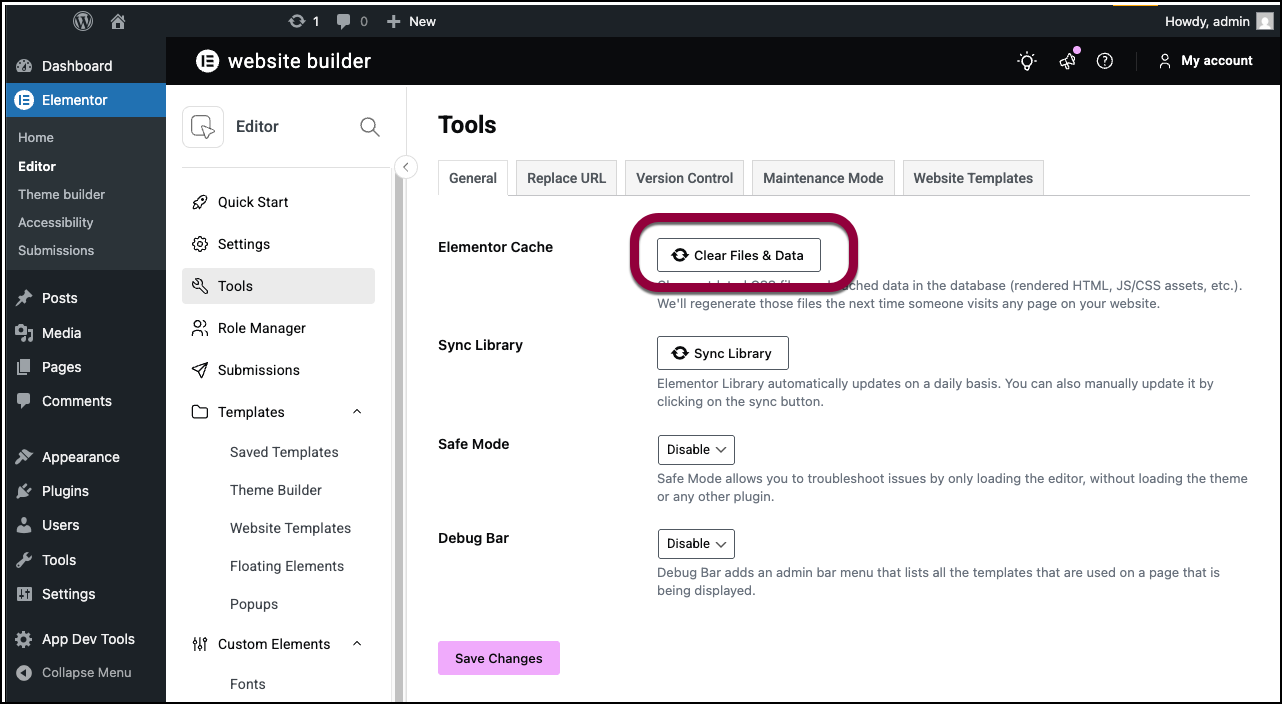
Regenerate rebuilds the CSS files Elementor prints on the front. If those files are stale or missing, the editor can still look right because it uses different assets.
If you skip regenerate and only purge cache, you may keep serving old generated CSS.
HTTPS URL mismatch and Replace URL
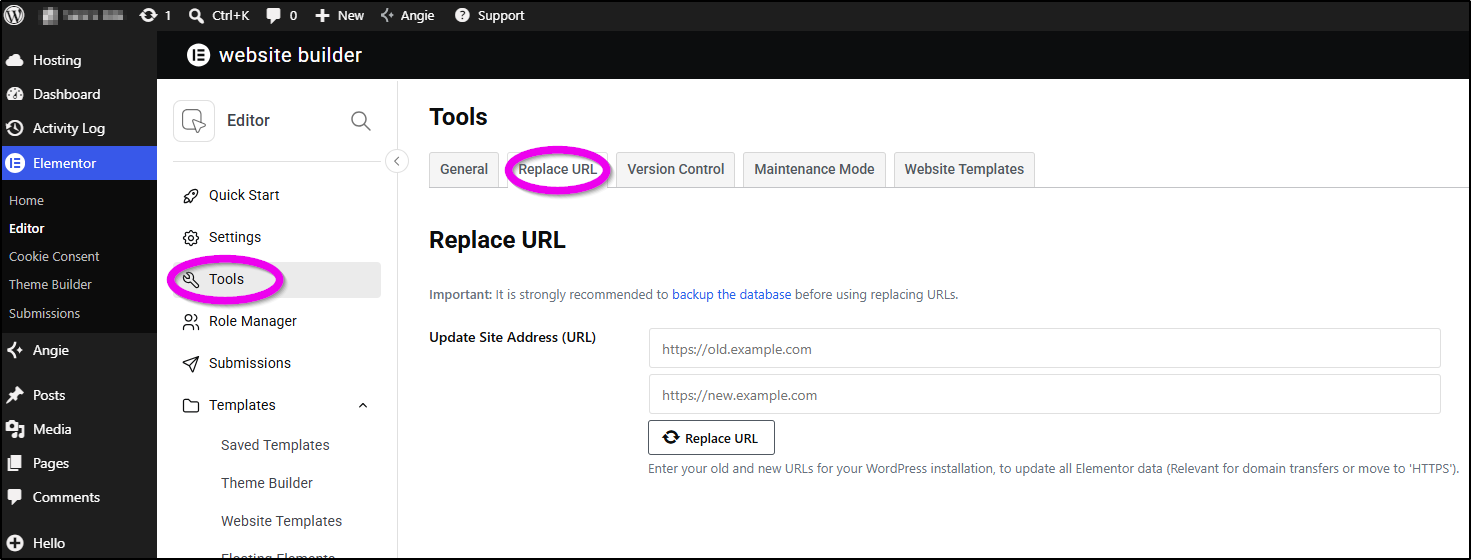
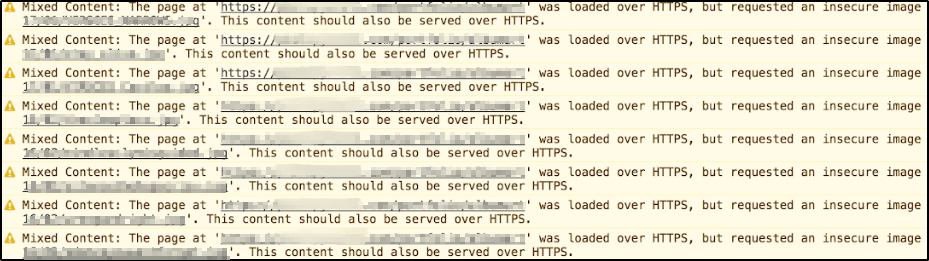
If Site URL and Home URL disagree, or you moved from HTTP to HTTPS, Elementor CSS can load from the wrong base URL. The editor may still work. The front loses styles or keeps old paths.
Check Settings → General for matching HTTPS URLs. Then:
- Elementor → Tools → Replace URL
- Replace the old address with the current address
- Regenerate CSS & Data again
- Purge caches
Wrong protocol or www mismatch is a frequent cause of “void of CSS” after migrations. Fix URLs before you blame widgets.
uploads/elementor/css permissions
Elementor writes CSS under wp-content/uploads/elementor/css/.
If that folder is not writable, regenerate cannot update files. Symptoms: changes never stick, or CSS 404s in Network.
Check:
- Folder exists
- Web server can write to it
- Disk is not full
- Security rules are not locking the directory
In DevTools Network, confirm the Elementor CSS files return 200, not 404 or 403. Fix permissions with your host if needed, then regenerate again.
Internal vs external CSS
Elementor can print CSS internally or externally (Elementor → Settings → Performance / related CSS settings, depending on version).
If external files fail (permissions, CDN oddities), try switching print method temporarily as a test, regenerate, and retest. Then pick the method that stays stable with your host. Do not flip settings randomly every hour. Change once, regenerate, purge, verify.
Cache, CDN, and minify order
Clear in this order after Elementor-side fixes:
- Elementor regenerate (already done)
- WordPress cache plugin purge
- Host cache purge
- CDN purge (Cloudflare and similar)
- Private window test
Minify/combine plugins can serve old combined CSS. Purge those too. If a minify plugin keeps restoring stale CSS, exclude Elementor CSS files from combine, or disable combine on that site while you confirm the real CSS is correct.
Aggressive “optimize JS/CSS” on Elementor pages is a common way to make a fixed site look broken again.
Atomic / V4 class quirks
If only new Atomic / V4 widgets lose styling while old widgets look fine, regenerate still comes first. Then clear CDN. Then test with a minimal page that uses one new widget.
Do not rebuild the whole site theme because one new widget class did not ship in the generated CSS. Prove CSS delivery first.
Soft close
When Elementor changes do not show live, the fix is almost always regenerate, URL match, writable CSS folder, then cache layers in order. Reinstall is last-resort file repair, not the default move.
If styles still will not stick after that pass, send me the front URL and a Network screenshot of the Elementor CSS request. I fix Elementor delivery issues on real sites (about), and the CSS status code usually points at the layer that is lying to you.
FAQs
I cleared Cloudflare. Why is it still old?
Clear Elementor CSS first, then cache plugin, then host, then CDN. CDN purge alone cannot rebuild missing Elementor CSS files.
Does Safe Mode fix live CSS?
Safe Mode is for editor loading conflicts. Live CSS issues need regenerate, URL, permissions, and cache. Different problem.
Mobile shows new, desktop shows old?
That can be separate cached variants or a responsive setting you only changed on one breakpoint. Confirm you edited the correct device tab, then purge all cache layers.
Post-update void of CSS on Elementor 4?
Run regenerate, confirm HTTPS URLs, purge CDN, check CSS file 200s. URL mismatch after SSL work is still a top cause.