If a site started showing WordPress’s critical-error page immediately after an Elementor update, find the PHP fatal before changing plugins. This guide is for one exact message: Elementor\Core\Experiments\Exceptions\Dependency_Exception: Depending on a hidden experiment is not allowed. A similar-looking white screen with a different fatal needs a different diagnosis.
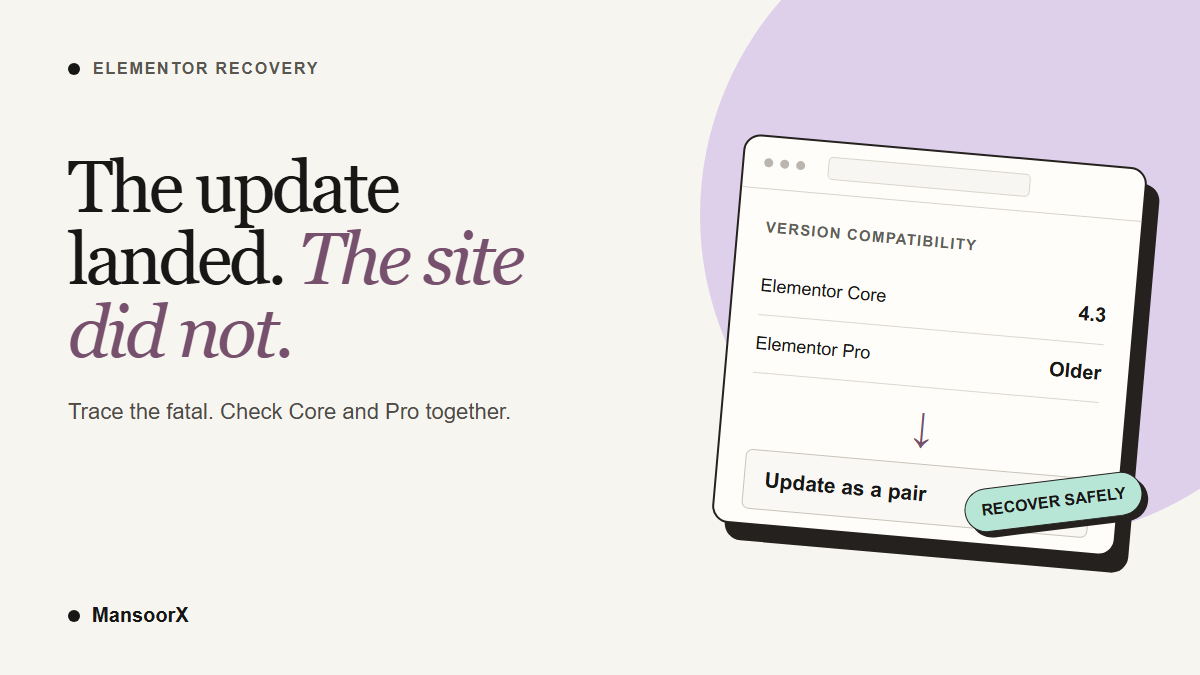
In Elementor issue #37392, the reported combination was Elementor Core 4.3.0 and Elementor Pro 3.29.2. An Elementor team member identified that Pro release as unsupported with Core 4.3.0 and advised updating Pro to the current 4.3.0 release. That is stronger evidence than guessing from the error alone. It does not establish that every Core/Pro version pair fails in the same way.
Confirm that this is your error
Read the host’s PHP error log or the WordPress debug log. Look for the complete exception above and a stack trace that includes Elementor’s experiments manager and Elementor Pro’s modules manager. Then record the installed Core and Pro versions. If the error line or version pattern differs, stop here and use a general WordPress white-screen recovery process.
If wp-admin still opens, check Plugins. If it does not, your host’s file manager or SFTP can show the Version header in wp-content/plugins/elementor/elementor.php and wp-content/plugins/elementor-pro/elementor-pro.php. A WP-CLI operator can also list plugins while skipping the failing Pro code:
wp plugin list --skip-plugins=elementor-proGet access back without guessing
Make or locate a restorable backup first. If wp-admin is unavailable, temporarily rename the wp-content/plugins/elementor-pro folder over SFTP or the host’s file manager. WordPress will stop loading Pro, which may let the admin open. Pro widgets and theme parts may be unavailable during this step, so keep it brief and avoid editing pages while Pro is off.
Now update Elementor Core and Elementor Pro to versions that Elementor currently supports together. For the specific Core 4.3.0 / Pro 3.29.2 report, Elementor’s own answer was to update Pro to 4.3.0. If your Pro license has expired or the update is not offered, do not assume that updating Core alone makes a very old Pro release supported. Ask Elementor or your host about the compatible upgrade path, or restore a known-good pair from backup while you resolve licensing and test the upgrade on staging.
If you have WP-CLI and a valid Pro update source, an administrator can update Core while skipping Pro’s fatal path:
wp plugin update elementor --skip-plugins=elementor-proThat command does not update Pro. Finish the compatible Pro update separately, then reactivate it and check the front end, wp-admin, and any Pro-built templates. Do not leave an old, unsupported Pro release active beside a new Core release just because the site happens to load.
When rollback is the safer bridge
If the matching Pro version cannot be installed today, a tested rollback to the last working Core/Pro combination may be safer than repeated live changes. Use the host’s backup or staging copy, preserve the current state, and follow a controlled WordPress rollback process. Rollback is a bridge while you prepare a supported update, not a long-term patch plan.
After recovery, check the exact exception is gone from fresh logs, open a Pro-built page, test the menu and form components your site uses, and confirm both plugin versions. Only then consider the incident closed.
What not to infer from this error
The message alone is not evidence of a hack, and it is not a reason to delete wp-config.php or rename every plugin. It identifies a dependency failure during Elementor startup. The version pair and stack trace tell you what to change. If those do not match the documented case, get the actual fatal before applying this guide.
Source: Elementor issue #37392, including the Elementor team’s compatibility guidance.