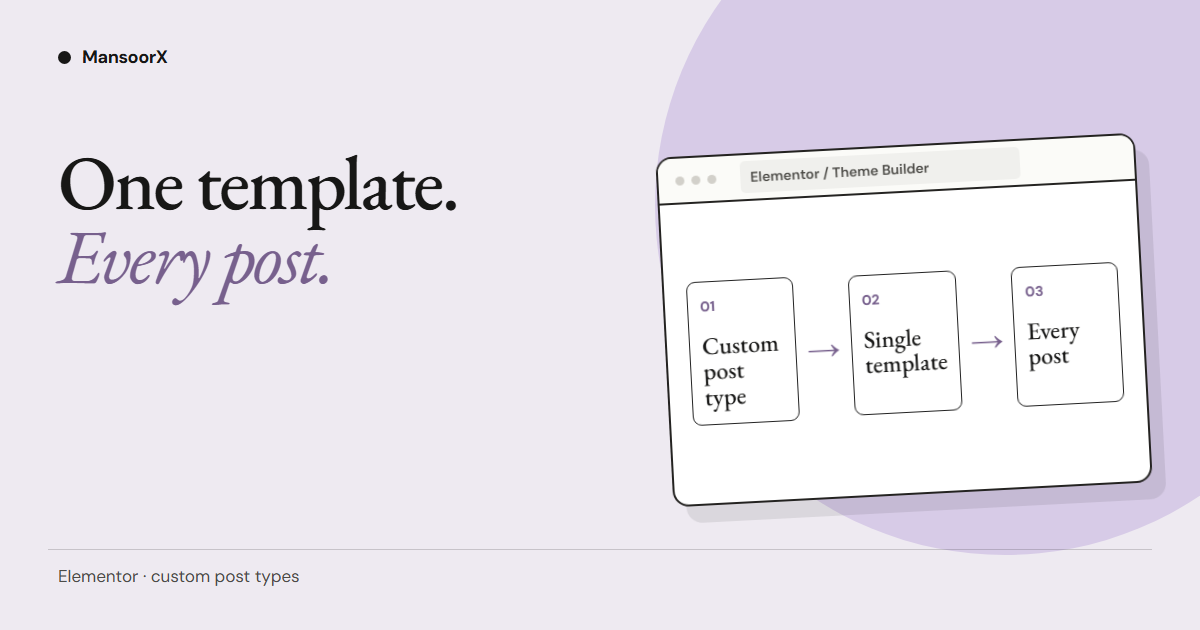
Custom post type templates in Elementor Theme Builder are how you stop pasting the same layout onto every CPT item by hand. You register the CPT, create a Single template, set display conditions, optionally add an Archive or Loop Grid, and preview with real items.
I am going to walk the maintainable path I use before people jump into JetEngine complexity. Concrete steps. No vague “systems you can scale” essay.
When you need a CPT
Use a custom post type when the content is not a blog post and not a page.
Examples that fit:
- Projects / portfolio items
- Team members
- Properties / listings
- Courses / resources with their own fields and archive
If you only need one static page, a Page is enough. If you need many items that share one layout and their own archive, use a CPT.
Register the CPT cleanly
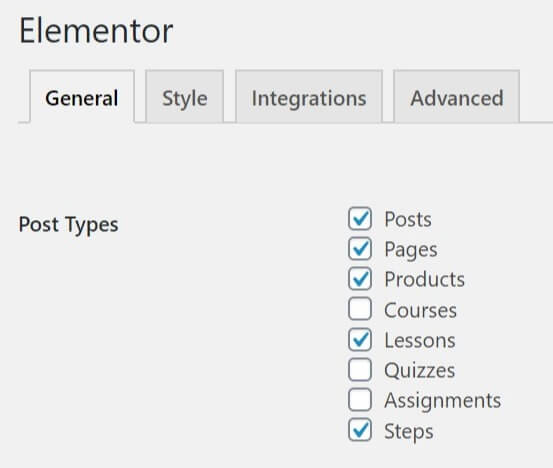
Register the post type with a plugin you are willing to keep (Custom Post Type UI is fine) or with code in a small custom plugin / child theme.
Checklist when you register:
- Public = true if it needs front URLs
- Has archive = true if you want
/cpt-slug/style archives - Supports title, editor, thumbnail as needed
- Show in REST = true when Elementor or other builders need REST data
- Clear singular and plural labels
Add custom fields with ACF, JetEngine meta, or Meta Box. Keep field names boring and stable. Renaming field keys later breaks dynamic tags.
Do not invent three CPTs when one CPT plus a taxonomy will do.
Single template and display conditions
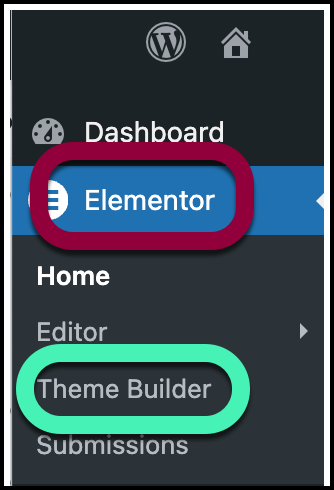
- Templates → Theme Builder → Add New
- Type: Single
- Create a design for one CPT item: title, featured image, fields, related CTA
- Use Elementor dynamic tags for title, featured image, and custom fields
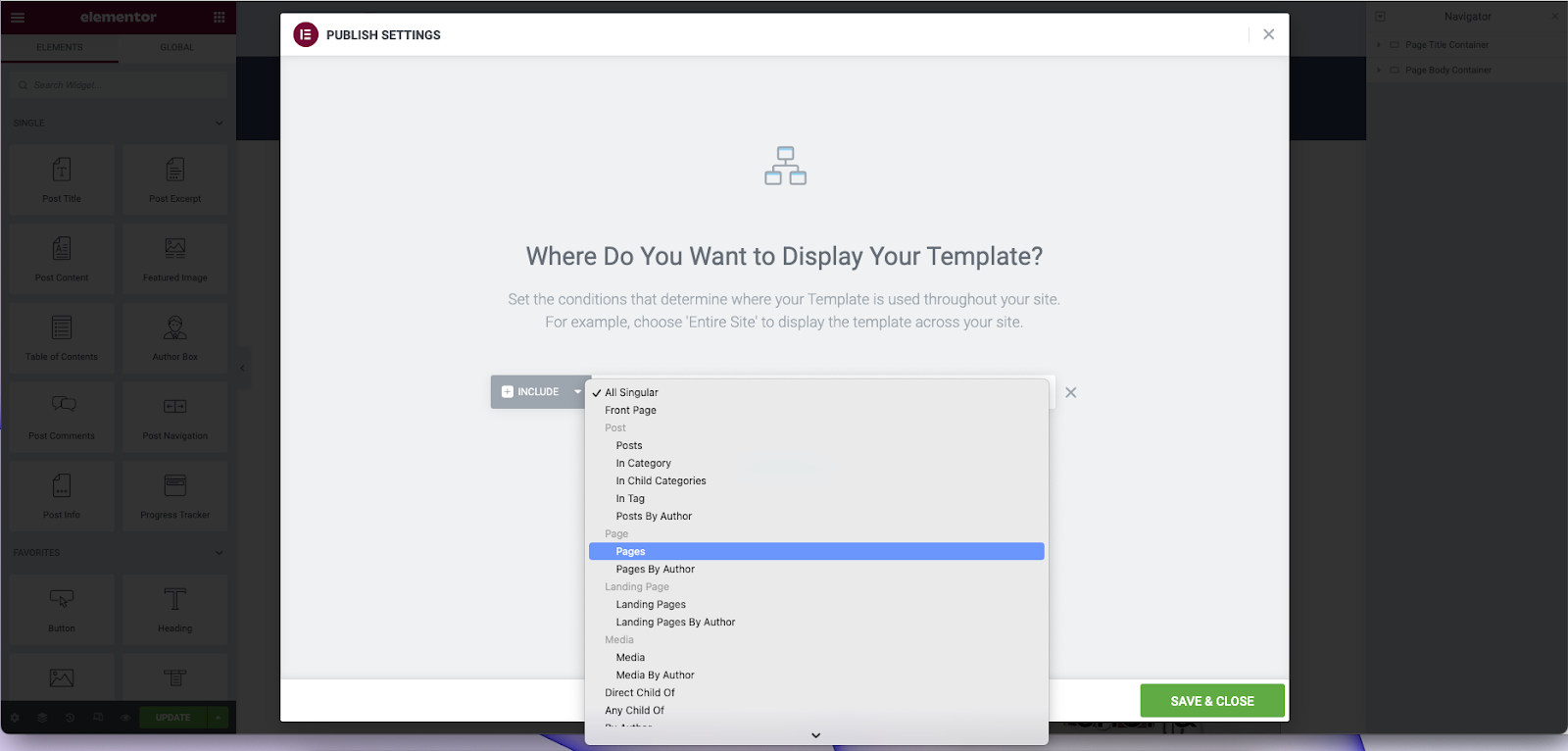
- Set Display Conditions to your CPT (for example Projects → All Projects)
- Publish
Preview Settings: pick a real CPT item so dynamic tags show data while you design. Same idea as Woo product preview. Without a preview item, the canvas looks empty and people think dynamic tags are broken.
One Single template per CPT is the default. Split templates by taxonomy only when the layout truly differs.
Archive options and Loop Grid
For the CPT archive:
- Theme Builder → Archive template, with conditions for that CPT archive, or
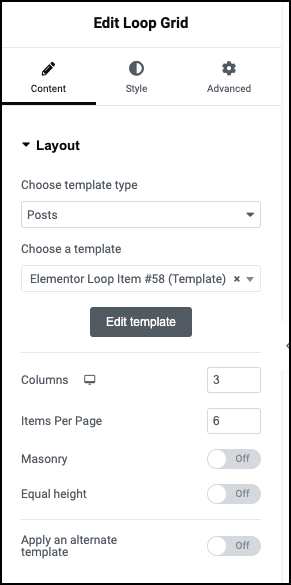
- A Page that holds an Elementor Loop Grid / Loop Carousel querying the CPT
Loop Grid is often clearer when you need filter layouts later. Archive templates are fine for standard taxonomy/CPT archive URLs.
If you use Loop Grid:
- Create a Loop Item template for the card
- Point the grid at the CPT
- Keep card links valid (see the companion post on fully clickable Loop cards)
Do not nest a full Single layout inside a Loop Item. Cards stay light. Singles carry the full detail.
Preview with real CPT items
Before you call it done:
- Publish at least two CPT items with real field data
- Open the Single URL for each
- Open the archive / grid page
- Check mobile
- Confirm display conditions did not leave the theme’s default single in charge
If the default theme single still shows, conditions are wrong or the template is draft. Fix conditions before you redesign widgets.
When to move up to JetEngine
Stay on CPT + Elementor Theme Builder when:
- Fields are straightforward
- Archives are simple
- You do not need complex relations, calendars, or advanced query builders
Move toward JetEngine when you need:
- Related items and bidirectional connections
- Query Builder driven listings and filters (JetSmartFilters)
- Custom content types that are not a fit for classic posts
- Front-end submission workflows tied to structured data
JetEngine is power. It is also more to maintain. Earn that complexity with a real requirement, not because a YouTube video used it for a three-field portfolio.
Governance rules that save you later
- One naming scheme for CPT slug, field keys, and template names
- Child theme or small custom plugin for register code, not random snippets in the parent theme
- Document display conditions in a short internal note
- Do not duplicate Singles “just in case” without conditions that differ
- Back up before you rename field keys
Soft close
CPT → Single template → conditions → archive/Loop → preview with real items. That is the path. Keep JetEngine for the day the query actually needs it.
If you want a second pair of eyes on a CPT and Theme Builder setup before it gets messy, send me the structure you are planning. I build these systems end to end (about), and I would rather catch a bad condition map early than untangle three competing Singles later.
FAQs
Do I need Elementor Pro?
Theme Builder Singles and Archives need Elementor Pro (or equivalent). The free editor alone is not the same workflow.
Can I use the theme’s single.php instead?
You can, with code. This guide is for Elementor Theme Builder. Mixing theme PHP singles and Elementor Singles without a clear owner creates confusing overrides.
CPT archive 404s?
Flush permalinks (Settings → Permalinks → Save). Confirm has_archive and the slug do not collide with a Page.
JetEngine or ACF for fields?
Both can feed Elementor dynamic tags. Pick one field system per project and stay consistent. Switching mid-build is how keys get messy.